
Git Internals and Branching Strategies: A Complete Guide
Git Internals and Branching Strategies: A Complete Guide
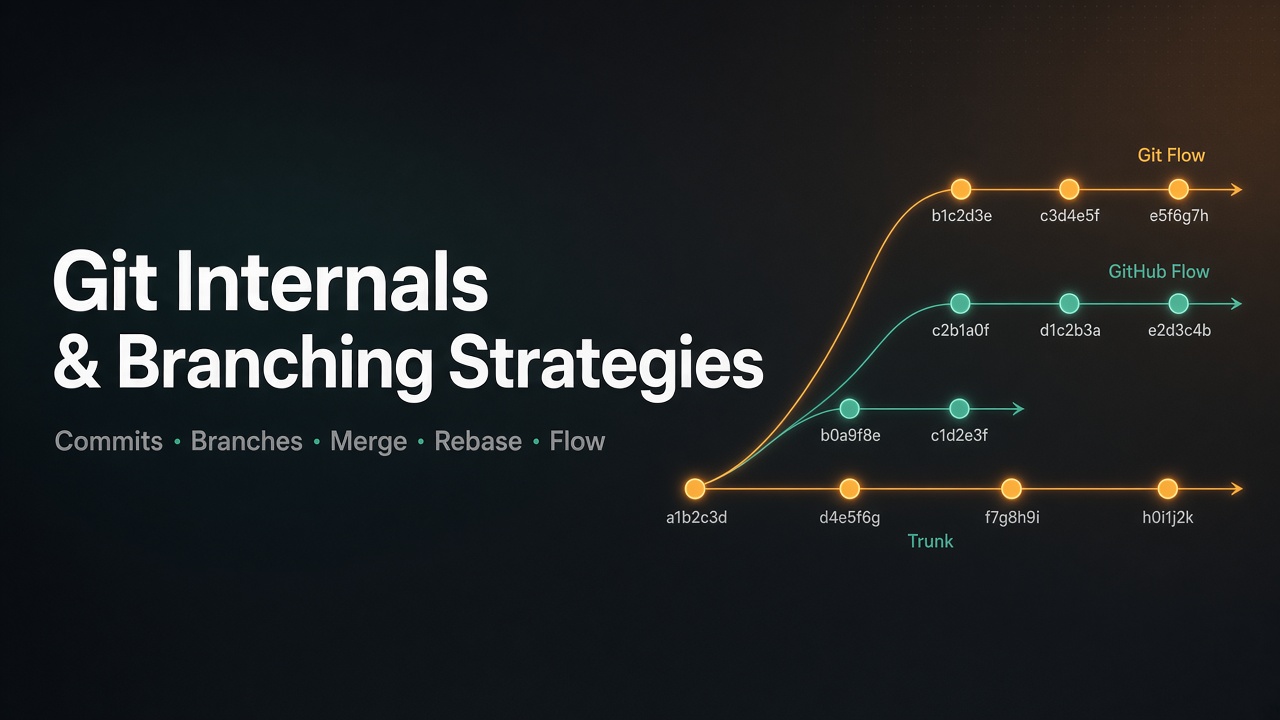
If you've been using Git for a while but still feel like some things are "magic" — this guide is for you. We'll start from the very foundation (what exactly is a commit, what is a branch) and work all the way up to the strategic level: which branching workflow should your team use and why.
By the end, you'll understand Git internals, master advanced operations like rebase and force push, and be able to make an informed decision between Git Flow, GitHub Flow, and Trunk-Based Development.
Table of Contents
1. Local vs Remote {#local-vs-remote}
Before we get into commits and branches, there's one fundamental concept that trips up most beginners: the difference between local and remote.
Your Local Repository
When you clone or initialize a Git repository, you get a full copy of the entire project history on your own machine. This is your local repository. Every commit, every branch, every tag — all of it lives inside the .git folder at the root of your project.
Your local repo is yours to work in freely. You can commit, branch, rebase, and reset — none of it affects anyone else until you explicitly share it.
The Remote Repository
A remote is a shared version of the repository hosted somewhere else — typically GitHub, GitLab, Bitbucket, or a company server. It's the source of truth that your whole team syncs through.
Your machine (local)          GitHub / GitLab (remote)
────────────────────          ────────────────────────
.git/
  refs/heads/main       ←──►  refs/heads/main
  refs/heads/feature    ←──►  refs/heads/feature
  objects/ (all history)       objects/ (all history)
By default, when you clone a repo, Git names the remote origin. You can have multiple remotes, but origin is the universal convention for the primary one.
How They Stay in Sync
| Command | Direction | What it does |
|---|---|---|
git push |
Local → Remote | Send your local commits to the remote |
git pull |
Remote → Local | Fetch remote changes and merge them into your branch |
git fetch |
Remote → Local | Download remote changes without merging (safe look first) |
The most important thing to internalize: nothing you do locally affects the remote until you push. You could make 50 commits, delete branches, rebase everything — and the remote would never know. This is one of Git's most powerful properties — you can experiment and even make mistakes completely safely offline.
LOCAL                              REMOTE (origin)
─────                              ───────────────
commit → commit → commit  ──push──►  remote updated
                          ◄─pull───  fetch + merge into local
                          ◄─fetch──  download only, no merge
When a branch exists on the remote, Git tracks it locally as origin/branchname. You'll see this when Git tells you "your branch is 3 commits ahead of origin/main" — it's comparing your local main pointer against the last known state of the remote's main.
2. What is a Commit? {#what-is-a-commit}
A commit is a snapshot of your entire codebase at a specific point in time. It is not a diff (a list of changes) — it is a full picture of every file in your project at that moment. Git stores it efficiently so it doesn't waste space.
Every commit contains exactly five pieces of information:
| Field | Description |
|---|---|
| Tree | A snapshot of all your files and folders |
| Commit message | What you wrote to describe the change |
| Author + timestamp | Who made it and when |
| Committer + timestamp | Who recorded it and when |
| Parent commit hash | A pointer to the commit before it |
From all five of these fields, Git calculates a unique SHA-1 hash — a 40-character fingerprint like c3f9a1b2.... This hash is the commit's identity. Change anything — even the timestamp — and the hash completely changes.
Commit c3f9a1:
  Tree:      (snapshot of all files)
  Message:   "fix login bug"
  Author:    Ahmed, 10:30am
  Parent:    a1b2c3  ← points to previous commit
Commits form a chain, where each commit points backward to its parent:
A  ←  B  ←  C  ←  D
                   ^
                  HEAD (you are here)
2. What is a Branch? {#what-is-a-branch}
A branch is simply a lightweight pointer to a specific commit. That's all it is. It is not a copy of your code, not a folder — just a label that says "this branch currently points to commit X."
main:    A -- B -- C -- D
                        ^
                      (main pointer lives here)
When you create a new branch:
git checkout -b feature/login
Git creates a new pointer that starts at the same commit as your current branch:
main:           A -- B -- C -- D
                                ^
feature/login:                  ^ (same starting point)
As you make new commits on feature/login, only its pointer moves forward. main stays where it is:
main:           A -- B -- C -- D
                                \
feature/login:                   E -- F -- G
                                           ^
                                    (feature pointer)
This is why branches are so cheap and fast in Git — creating a branch is just creating a tiny file that stores one commit hash.
3. What is Merge? {#what-is-merge}
Merging is the act of combining the work from two branches into one. When your feature is ready and you want to bring it into dev or main, you merge.
git checkout dev
git merge feature/login
Git looks at both branches and figures out how to combine their histories. The result depends on the situation — which leads us to the two types of merge.
4. Types of Merge: Fast-Forward vs 3-Way {#types-of-merge}
Fast-Forward Merge
This happens when your target branch (dev) has not moved since you branched off. There is nothing to "combine" — your feature branch is simply ahead of dev in a straight line.
Before merge:
dev:     A -- B -- C
                   ^
feature:           C -- X -- Y -- Z

After fast-forward merge:
dev:     A -- B -- C -- X -- Y -- Z
                                  ^
                            (dev pointer moved forward)
Git just moves the dev pointer to the tip of your feature branch. No new commit is created. History stays perfectly linear.
3-Way Merge
This happens when your target branch (dev) has moved forward with new commits since you branched off. Now both branches have diverged and Git needs to combine two different timelines.
Before merge:
dev:     A -- B -- C -- D -- E
                   ^
                   (you branched off here)
feature:           C -- X -- Y -- Z
Git finds three key points to figure out how to combine them:
Common ancestor — where both branches last shared history (
C)Dev tip — the latest commit on dev (
E)Feature tip — the latest commit on feature (
Z)
By comparing all three, Git produces a merge commit — a special commit with two parents:
After 3-way merge:
dev:     A -- B -- C -- D -- E -- M
                                 / \
feature:           C -- X -- Y -- Z
M is the merge commit. It simply records: "At this point in time, the dev timeline and the feature timeline were joined together." When you do git log, Git follows both parent chains and shows you the full story of both branches.
| Type | When it happens | Creates merge commit? | History shape |
|---|---|---|---|
| Fast-forward | Dev hasn't moved since branch | ❌ No | Linear ✅ |
| 3-way merge | Dev has moved since branch | ✅ Yes (two parents) | Fork shape |
5. What is Rebase? {#what-is-rebase}
Rebase is an alternative to merge. Instead of combining two branches with a merge commit, rebase replays your commits on top of another branch — as if you had branched off from it originally.
Before rebase:
dev:     A -- B -- C -- D -- E
                   ^
feature:           C -- X -- Y -- Z
git checkout feature
git rebase dev
Git takes your commits X, Y, Z and replays them one by one on top of E (the tip of dev):
After rebase:
dev:     A -- B -- C -- D -- E
                              \
feature:                       E -- X' -- Y' -- Z'
Now if you merge feature into dev, it will be a fast-forward — because feature is directly ahead of dev with no divergence. The result is a perfectly linear history.
The goal of rebase is exactly this: keep history linear and readable, avoiding the fork shapes that 3-way merges create.
6. Why Rebase Changes Commit Hashes — Always {#why-rebase-changes-hashes}
This is the most important thing to understand about rebase.
Remember that a commit hash is calculated from all five fields — including the parent commit hash. When you rebase, you are changing the parent of your commits. A new parent → a completely new hash — even if the code content is 100% identical.
Before rebase:
X  (parent: C,  hash: abc123)
Y  (parent: X,  hash: def456)
Z  (parent: Y,  hash: ghi789)

After rebase onto E:
X' (parent: E,  hash: 111aaa)  ← completely new hash
Y' (parent: X', hash: 222bbb)  ← completely new hash
Z' (parent: Y', hash: 333ccc)  ← completely new hash
Because X' got a new hash, Y''s parent changed → Y' gets a new hash → Z''s parent changed → Z' gets a new hash. It is a chain reaction all the way to the end of your branch.
If your branch is already on top of the target branch, there is nothing to move. Git says "Already up to date" and nothing happens. Otherwise — rebase always creates new hashes. No exceptions.
7. The Golden Rule of Rebase {#the-golden-rule-of-rebase}
Never rebase a branch that other people have already pulled from.
If your colleague pulled your branch when commit X had hash abc123, and you rebase so that X becomes X' with hash 111aaa — their machine still has abc123. Git sees these as two completely different commits. The same code now has two different identities, and Git has no way to reconcile them cleanly.
| Branch type | Others pulling it? | Safe to rebase? |
|---|---|---|
| Your solo feature branch | No | ✅ Yes, freely |
| Shared feature branch | Yes | ❌ No, use merge |
dev / main / staging |
Yes, always | ❌ Never |
8. The Shared Branch Problem — A Real Scenario {#the-shared-branch-problem}
Let's make the danger concrete with a real scenario.
Both you and your colleague Ahmed are working on feature/login. You both pulled when the branch was at commit B.
dev:            A -- B -- C -- D -- E
                     ^
feature/login:       B -- X -- Y -- Z
                               ^
                          Ahmed added: AH1 -- AH2
You decide to rebase and force push:
git checkout feature/login
git rebase dev
git push --force origin feature/login
Your local branch is now clean and linear. But Ahmed's AH1 and AH2 only exist on his machine, sitting on top of old Z — which no longer exists on the remote.
When Ahmed tries to push, he gets a rejection error. When he pulls, Git sees two unrelated timelines and tries to merge them:
Remote:  A -- B -- C -- D -- E -- X' -- Y' -- Z'
Ahmed:   A -- B -- X  -- Y  -- Z  -- AH1 -- AH2
The result: old commits (X, Y, Z) and new commits (X', Y', Z') both appear in history — everything is duplicated. Conflicts appear even though Ahmed never touched your code. The history becomes an unreadable mess.
This is why you never rebase a shared branch.
9. Force Push and Force Push with Lease {#force-push}
Why Force Push Exists
When you rebase, your local branch history diverges from the remote. A regular git push will be rejected because Git sees the remote has commits your local branch does not. To override this, you use force push.
git push --force
git push --force origin feature/login
This tells Git: "I don't care what is on the remote. Overwrite it with my local branch."
This is powerful and dangerous. If someone else pushed to the remote after your last pull, you will silently delete their work with no warning.
git push --force-with-lease
git push --force-with-lease origin feature/login
This is the safer version of force push. It adds one important check:
"Only force push if the remote branch is still at the same commit I last saw it at. If someone else pushed in the meantime — refuse and warn me."
Think of it like an optimistic lock. You are saying: "Overwrite the remote, but only if nothing has changed since I last looked."
| Command | What it does | Safe? |
|---|---|---|
git push |
Normal push, rejected if remote diverged | ✅ Always safe |
git push --force |
Overwrites remote no matter what | ❌ Dangerous |
git push --force-with-lease |
Overwrites remote only if no new remote changes | ✅ Much safer |
Always use
--force-with-leaseinstead of--force. Make it a habit.
# Set an alias so you never accidentally use --force
git config --global alias.fpush 'push --force-with-lease'
Force push (with lease) is acceptable only on your own solo feature branch after a rebase — never on main, dev, staging, or any shared branch.
11. Additive vs Destructive Commands {#additive-vs-destructive}
Git commands fall into two categories. Knowing which is which changes how confidently you run them.
Additive Commands
Additive commands only add to Git's history. They never rewrite or remove what already exists. If something goes wrong, you can always trace back through the chain.
| Command | What it adds |
|---|---|
git commit |
A new snapshot to the chain |
git merge |
A merge commit joining two histories |
git push |
Your local commits onto the remote |
git fetch |
Remote state downloaded — read only, nothing changed locally |
git tag |
A permanent label pointing at a commit |
git branch |
A new pointer to an existing commit |
git stash |
Your changes saved to a temporary stack |
The defining property: nothing is gone. You can always git log or git reflog and find your way back.
Destructive Commands
Destructive commands rewrite or remove history. They are sometimes exactly what you need — but they cannot be undone through the normal Git flow.
| Command | What it destroys | Recoverable via reflog? |
|---|---|---|
git reset --hard |
Moves HEAD backward, discards changes | ✅ Yes (if work was committed) |
git rebase |
Rewrites all commit hashes on the branch | ✅ Yes (old commits stay in reflog) |
git commit --amend |
Replaces the last commit with a new one | ✅ Yes |
git branch -D |
Force-deletes a branch pointer | ✅ Yes (commits still exist) |
git push --force |
Overwrites remote history | ❌ Not recoverable from local reflog |
git clean -fd |
Permanently deletes untracked files from disk | ❌ Gone forever |
git stash drop |
Removes a stash entry | ⚠️ Sometimes via reflog |
git filter-repo |
Rewrites the entire repository history | ❌ Very hard to reverse |
The pattern: anything that rewrites hashes or deletes unreferenced objects is destructive. The good news is that most destructive operations on locally committed work are recoverable via git reflog — as long as Git hasn't garbage-collected yet (~90 days).
The one true point of no return: git push --force on a remote branch. Once overwritten on the remote and others have pulled that state, there is no clean path back. That's why --force-with-lease exists, and why you never force push to shared branches.
12. git log vs git reflog {#git-log-vs-git-reflog}
git log — The Official History
git log shows the committed history of your current branch — the official public story of what happened.
git log --oneline
7ab42e  Merge feature/login into dev
c3f9a1  fix button alignment
a1b2c3  add login form validation
f9e123  add login page skeleton
Only shows commits reachable from your current branch. If a commit was rebased away or deleted → it is gone from here.
git reflog — Your Local Safety Net
git reflog shows every move your HEAD pointer has ever made on your local machine — including moves caused by rebase, reset, checkout, and even mistakes.
git reflog
7ab42e  HEAD@{0}  rebase finished: refs/heads/feature onto E
c3f9a1  HEAD@{1}  commit: fix button alignment      ← old hash, before rebase!
a1b2c3  HEAD@{2}  commit: add login form validation
f9e123  HEAD@{3}  checkout: moving from dev to feature/login
Reflog exists only on your local machine and entries are kept for approximately 90 days before Git garbage collects them.
Recovering Lost Work with git reflog
Say you accidentally rebased and lost commits:
# Step 1: See your reflog
git reflog

# Output:
# 7ab42e HEAD@{0}  rebase finished
# c3f9a1 HEAD@{1}  commit: my important work  ← this is what I lost!

# Step 2: Recover by resetting to the old hash
git reset --hard c3f9a1

# You are back to where you were before the rebase!
git log |
git reflog |
|
|---|---|---|
| What it shows | Official branch history | Every HEAD movement ever |
| Deleted/rebased commits | ❌ Gone | ✅ Still there |
| Exists on remote | ✅ Yes | ❌ Local only |
| Survives garbage collection | ✅ Yes | ❌ ~90 days only |
| Primary use | Read the story | Recover lost work |
git logis your published history.git reflogis your personal undo button.
Reflog Saves You From Destructive Commands
Here are the exact recovery steps for the most common Git disasters:
Scenario 1 — Accidentally ran git reset --hard
# You ran this and lost your last 3 commits:
git reset --hard HEAD~3

# Recover:
git reflog
# 7ab42e HEAD@{0}  reset: moving to HEAD~3
# c3f9a1 HEAD@{1}  commit: the work I lost   ← this is it

git reset --hard c3f9a1
# Back to where you were, all commits restored
Scenario 2 — Deleted a branch by accident
# You ran:
git branch -D feature/my-work

# Recover:
git reflog
# Find the last commit that was on that branch
# abc123 HEAD@{4}  commit: last commit on feature/my-work

git checkout -b feature/my-work abc123
# Branch is back, pointing to the right commit
Scenario 3 — Rebase went completely wrong
# Option A: Still in progress — just abort
git rebase --abort

# Option B: Finished, but the result looks wrong
git reflog
# d4e5f6 HEAD@{0}  rebase finished: refs/heads/feature onto E
# c3f9a1 HEAD@{1}  rebase: checkout dev         ← before rebase started
# abc123 HEAD@{2}  commit: my last commit        ← this is what I want

git reset --hard abc123
# Branch is back to exactly where it was before the rebase
Scenario 4 — Accidentally amended the wrong commit
# You ran git commit --amend and overwrote something important
git reflog
# 7ab42e HEAD@{0}  commit (amend): new message
# c3f9a1 HEAD@{1}  commit: original commit  ← the one before amend

git reset --hard c3f9a1
# Original commit restored
The rule of thumb: before you panic, run git reflog. If the work was ever committed — even for a second — it is in the reflog and you can get it back. The only situation where reflog cannot help you is git clean -fd (untracked files that were never committed) or a remote branch that was force-overwritten.
13. Branching Strategies: Git Flow {#git-flow}
Now that we understand Git internals, let's look at how teams structure their branching. Git Flow, introduced by Vincent Driessen in 2010, is a strict branching model designed around scheduled releases.
Branch Structure
main         ──────────────────────────────────────────►
              \                                  /
hotfix         \──────────────────────────────/
                \
develop          \──────────────────────────────────────►
                  \          /        \         /
feature            \────────/          \───────/
                             \
release                       \────────/
Branch Types
| Branch | Purpose | Branches from | Merges into |
|---|---|---|---|
main |
Production-ready code | — | — |
develop |
Integration branch | main |
— |
feature/* |
New features | develop |
develop |
release/* |
Release preparation | develop |
main + develop |
hotfix/* |
Production bug fixes | main |
main + develop |
Workflow Steps
Start a feature:
git checkout develop
git checkout -b feature/my-feature
Finish a feature:
git checkout develop
git merge --no-ff feature/my-feature
git branch -d feature/my-feature
Create a release:
git checkout -b release/1.2.0 develop
# bump version, fix minor bugs
git checkout main && git merge --no-ff release/1.2.0
git tag -a v1.2.0
git checkout develop && git merge --no-ff release/1.2.0
Hotfix:
git checkout -b hotfix/critical-bug main
# fix the bug
git checkout main && git merge --no-ff hotfix/critical-bug
git checkout develop && git merge --no-ff hotfix/critical-bug
Granular Feature Control
One of Git Flow's most powerful advantages is full control over what ships in each release. Because develop acts as a buffer, you can have multiple feature branches in progress and choose which ones make it into the next release. If a feature isn't ready, you simply don't merge it into the release branch.
develop  ──────────────────────────────────────────►
          \          /    \        (not merged yet)
feature/A  \────────/      \──────────────────────►  ← not ready
                    \
feature/B            \──────/  ← ready, merged into release
                              \
release/1.0                    \──────► main (v1.0.0)
| Stage | What you control |
|---|---|
feature → develop |
Which features are integrated for testing |
develop → release |
Which features make the cut for this release |
release → main |
What actually hits production |
Pros & Cons
✅ Pros
Clear structure for managing multiple versions in parallel
Isolated release preparation without blocking ongoing work
Dedicated hotfix path for production emergencies
Well-suited for versioned software (libraries, apps with release cycles)
❌ Cons
Heavy and complex — many branches to track
Long-lived branches increase merge conflict risk
Overhead is often excessive for small teams or simple projects
Slows down delivery in fast-moving environments
14. Branching Strategies: GitHub Flow {#github-flow}
A simpler model popularized by GitHub. It assumes you can deploy main at any time.
Branch Structure
main     ──────────────────────────────────────────────►
          \        /    \       /    \               /
feature    \──────/      \─────/      \─────────────/
Branch Types
| Branch | Purpose |
|---|---|
main |
Always deployable; source of truth |
feature/* (or any name) |
All work — features, fixes, experiments |
Workflow Steps
1. Create a branch from main:
git checkout main
git checkout -b feature/add-login
2. Commit and push:
git add .
git commit -m "Add login form with validation"
git push origin feature/add-login
3. Open a Pull Request — request review, discuss, iterate
4. Merge into main after approval:
git checkout main
git merge --no-ff feature/add-login
git push origin main
5. Deploy immediately — main is deployed to production right after merge, often automated via CI/CD
Handling Releases in GitHub Flow
GitHub Flow is built around continuous deployment, so it doesn't have a formal release mechanism built in. Teams handle it a few ways:
Option 1 — Git Tags (most common)
git tag -a v1.2.0 -m "Release version 1.2.0"
git push origin v1.2.0
A tag is a permanent label attached to a specific commit — a frozen bookmark. Unlike a branch, a tag never moves.
commits:   A ── B ── C ── D ── E  ← main (moves forward)
                     ↑
                   v1.0.0         ← tag (frozen here forever)
Option 2 — Release Branches — cut a release/1.2.0 branch off main when you need to stabilize before shipping
Option 3 — Feature Flags — code is merged into main but features are toggled off in production until ready. This is how large-scale teams (including GitHub itself) ship safely.
Git Flow gives you structural control over releases. GitHub Flow gives you speed, and expects you to build the control layer yourself (flags, CI/CD, tagging).
Pros & Cons
✅ Pros
Simple and easy to understand
Encourages frequent, small merges (reduces drift)
Aligns naturally with CI/CD pipelines
Pull Requests are central — great for code review culture
❌ Cons
Requires robust CI/CD and automated testing to maintain
mainstabilityDoesn't natively support multiple concurrent release versions
Not ideal for projects with formal, scheduled release cycles
15. Branching Strategies: Trunk-Based Development {#trunk-based-development}
Trunk-Based Development (TBD) takes GitHub Flow's simplicity even further. There is effectively one branch — the trunk (usually main) — and everyone commits to it constantly, directly or through very short-lived branches that live for hours, not days.
This is how Google, Meta, and many high-velocity engineering teams ship software at scale.
Branch Structure
main (trunk)   ──────────────────────────────────────────────────────►
                ↑    ↑    ↑    ↑    ↑    ↑    ↑    ↑    ↑    ↑    ↑
               dev  dev  dev  dev  dev  dev  dev  dev  dev  dev  dev
               (direct commits or tiny short-lived branches, max 1-2 days)
Two Styles of TBD
Pure Trunk-Based Development — developers commit directly to main multiple times per day. Every commit triggers CI and automated tests.
Scaled Trunk-Based Development — developers work on short-lived feature branches (max 1–2 days), then open a PR and merge into main. The key rule: branches must be deleted within 2 days, no exceptions.
main     ──────────────────────────────────────────────────────────►
          \  /  \  /  \  /    \  /   \  /    \────────────────/ ← max 2 days
           \/    \/    \/      \/      \/
The Core Principle: Feature Flags Over Long Branches
Trunk-Based Development solves the "what if my feature isn't done?" problem with feature flags, not branches.
// Feature flag in code
if (featureFlags.isEnabled("new-checkout")) {
  return <NewCheckout />;
}
return <OldCheckout />;
You merge incomplete code into main every day. The flag keeps it hidden in production. When the feature is ready, you flip the flag. No big-bang merge, no conflict hell.
main  ──────────────────────────────────────────────────────────►
       ↑ partial feature merged (flag OFF)
                    ↑ more code merged (flag still OFF)
                                   ↑ feature complete (flag ON → live)
Workflow Steps
1. Pull the latest trunk:
git checkout main
git pull origin main
2. Work and commit frequently (or create a short-lived branch if using scaled TBD):
# Wrap incomplete features in a flag
git add .
git commit -m "Add checkout API client (behind flag)"
git push origin main
3. CI runs on every push — tests, linting, static analysis must pass before the commit is accepted
4. Release by deploying trunk — the trunk is always in a deployable state. A release is just deploying the current HEAD.
# Tagging a release from trunk
git tag -a v2.1.0 -m "Release 2.1.0"
git push origin v2.1.0
Why Short-Lived Branches Are the Key
The longer a branch lives, the more it diverges from main. More divergence = more conflicts = more painful merges. TBD solves this by keeping the integration cycle extremely tight:
| Branch age | Conflict risk | Integration pain |
|---|---|---|
| Hours (TBD) | Very low | Minimal |
| Days (GitHub Flow) | Low–Medium | Manageable |
| Weeks (Git Flow features) | High | Often painful |
| Months (Git Flow release) | Very high | Potentially catastrophic |
What "Always Releasable" Actually Means
In TBD, the trunk must be in a deployable state at all times. This demands:
Comprehensive automated tests — unit, integration, and end-to-end tests run on every commit
Feature flags — for every incomplete feature that touches the codebase
Fast CI pipelines — ideally under 10 minutes so developers get feedback quickly
Pair programming or PR reviews — even short-lived branches get reviewed quickly
Pros & Cons
✅ Pros
Maximum velocity — no long-running merge conflicts ever
Forces small, focused commits (easier to review, easier to revert)
Continuous integration in the truest sense — everyone's code is always integrated
Simplified branching model — only one thing to think about
Safer deploys — small changes are easier to debug and roll back
Forces good engineering practices (feature flags, automated testing)
❌ Cons
Requires strong CI/CD discipline — no shortcuts
Feature flags add complexity to the codebase (need to clean them up)
Not suitable without high automated test coverage — you'll break
mainconstantlyHarder to support multiple production versions simultaneously
Requires culture change — developers must be comfortable committing frequently
Direct-to-trunk style requires very senior team discipline
16. Side-by-Side Comparison {#side-by-side-comparison}
| Aspect | Git Flow | GitHub Flow | Trunk-Based Dev |
|---|---|---|---|
| Branch model | 5+ long-lived branches | 1 long-lived + feature branches | 1 branch (trunk) |
| Branch lifetime | Weeks to months | Days to weeks | Hours to 2 days |
| Release style | Scheduled / versioned | Continuous deployment | Continuous deployment |
| Incomplete features | Stay on feature branch | Feature flags | Feature flags (required) |
| Hotfixes | Dedicated hotfix/* branch |
Just another branch from main |
Commit to trunk, deploy |
| Merge conflicts | High risk (long-lived branches) | Medium risk | Very low risk |
| CI/CD dependency | Low | High | Very high |
| Code review | Optional | Central (PR-based) | Mandatory (fast review) |
| Multiple versions | Supported natively | Not supported | Not supported |
| Team size fit | Large teams, enterprises | Small–medium agile teams | High-velocity, senior teams |
| Complexity | High | Low | Low model, high discipline |
| Learning curve | Steep | Gentle | Gentle model, steep culture |
17. When to Use Which {#when-to-use-which}
Choose Git Flow when:
You ship versioned software (e.g., v1.0, v2.0 release cycles)
You need to maintain multiple versions simultaneously (e.g., a library supporting v2 and v3)
Your release cycle is scheduled (quarterly, monthly)
Your team is large and needs strict process guardrails
You cannot deploy at any moment (regulatory, QA, or compliance requirements)
Choose GitHub Flow when:
You practice continuous delivery or deployment
You have a single production environment
You want a lightweight process for fast iteration
Your team is small to medium and values simplicity
You have reasonable CI/CD in place but not the full discipline for TBD
Choose Trunk-Based Development when:
Your team is experienced and disciplined about committing small, tested changes
You have comprehensive automated test coverage (unit, integration, end-to-end)
You have fast, reliable CI pipelines
You want maximum deployment frequency and minimum merge pain
Your team is willing to invest in feature flag infrastructure
You are inspired by how Google, Meta, or Netflix ship code
Quick Mental Model
Scheduled releases, multiple versions?       → Git Flow
Continuous delivery, small team?             → GitHub Flow
Maximum velocity, strong CI, senior team?    → Trunk-Based Development
18. Best Practices Summary {#best-practices}
Commits
Make small, focused commits — one logical change per commit
Write clear commit messages: what changed and why, not how
Never commit broken code to a shared branch
Branches
Always branch off from the latest version of your target branch
Use descriptive branch names:
feature/login-form,fix/null-pointer-crashDelete branches after they are merged
In TBD, keep branches alive for 2 days maximum
Merge
Use merge on shared branches — it is safe and preserves history
Use squash merge (
git merge --squash) if you want to collapse a messy feature branch into one clean commit before mergingUse
--no-ffwhen you want to preserve the fact that a feature branch existed
Rebase
Only rebase your own solo feature branch — never a shared one
Use
git rebase -i(interactive rebase) to clean up commits before opening a Pull RequestAfter rebasing, always use
--force-with-leasewhen pushing
Force Push
Never use
git push --force— always usegit push --force-with-leaseNever force push to
main,dev,staging, or any shared branchOnly force push to your own solo feature branch after a rebase
Reflog
If you make a mistake — do not panic. Run
git reflogfirstAlmost every Git mistake is recoverable within 90 days using reflog
Make it a habit to check reflog before deciding a commit is "lost"
Feature Flags
Use feature flags in GitHub Flow and TBD to decouple deployment from release
Clean up feature flags after the feature is fully rolled out — stale flags become technical debt
Keep your flag evaluation logic simple and centralized
Final Thought
Git is not magic — it is a system of pointers, snapshots, and hashes. Once you understand that a branch is just a pointer, a commit is just a snapshot with a parent, and a rebase is just moving that parent — everything else follows logically.
The branching strategy you choose is not about which one is objectively "best." It is about what fits your team's maturity, your release cadence, and your investment in automation. Git Flow gives you structure. GitHub Flow gives you simplicity. Trunk-Based Development gives you velocity — at the cost of discipline.
Start where your team is. Level up the tooling and practices. The branching strategy often follows naturally.
Written based on real questions and real confusion — the best kind of learning.